Using The Camera
Raspbot V2 comes with a camera, connected directly to the Raspberry PI through USB.
To check whether the camera is connected, type the following into the terminal:
lsusb
To view images, we'll use feh:
sudo apt install feh
Computer Vision
Computer vision is computation done on images.
This page will look at how to use computer vision from a high level, without diving into its theory.
We will use 2 popular computer vision library in python: - OpenCV: contains many useful utilities for computer vision
pip install opencv-python
- mediapipe: contains algorithms for hand and posture tracking
pip install mediapipe
OpenCV
We will use OpenCV to prepare images to feed into mediapipe which contains many machine learning algorithms for object detection, facial detection, etc.
The official OpenCV tutorial is linked here.
Opening Images And Writing To File
| Function | Details |
|---|---|
cv.imread |
imports an image given a path |
cv.imshow |
displays a window with an image given the window title and image object |
cv.cvtColor |
apply an operation over the whole image for a desired effect for instance, cv.COLOR_BGR2GRAY to grayscale an image. Other flags can be found here. |
cv.waitKey |
waits for a user input for an amount in miliseconds. If 0 is entered, it will wait indefinitely. Usually used to keep a display window open until user input is received. |
cv.imwrite |
writes an image to a path |
import cv2 as cv

img = cv.imread("path/to/image.png")
# opening an image named 'image.png'
cv.imshow("Image: ", img)

# converting to grayscale
gray = cv.cvtColor(img, cv.COLOR_BGR2GRAY)
cv.imshow("Grayscaled Image: ", gray)

if cv.waitKey(0) == ord("s"):
    # writing the grayscaled image to 'output.png'
    cv.imwrite("path/to/output.png", gray)


Opening A Camera
| Function | Details |
|---|---|
cv.VideoCapture |
input an index of a camera (in case for multiple camera in use, 0 if only one camera is connected). Returns an object stored in a variable called cap. |
cap.isOpened |
returns a boolean which states whether the camera has been opened or not. |
cap.read |
take a shot from the camera and receive the frame as an image. Returns a tuple (ret, frame). ret is a boolean and frame is an image. |
cap.release |
closes the camera |
cv.destroyAllWindows |
destroys all windows |
import numpy as np
import cv2 as cv
import sys

# argument is the index of camera (if have multiple cameras)
cap = cv.VideoCapture(0)
if not cap.isOpened():
    sys.exit("Can't open the camera for some reason")

try:
    while True:
        # ret is True or False for whether it is read correctly, somehow can also be used to check for the end of the footage??
        ret, frame = cap.read()

        if not ret:
            print("Can't receive frame. Exitting...")
            break

        gray = cv.cvtColor(frame, cv.COLOR_BGR2GRAY)

        cv.imshow("frame", gray)
        if cv.waitKey(1) == ord('q'):
            break
finally:
    cap.release()
    cv.destroyAllWindows()
Writing A Video
Initialize writer object.
# fourcc is 4-byte code used to speify the video codec
# codec: coder-decodertps://imgur.com/undefine
fourcc = cv2.VideoWriter_fourcc(*"XVID")
out = cv2.VideoWriter("output.avi", fourcc, 30.0, (frame_width, frame_height))
Writing a frame
out.write(frame)
Once ready to close program:
out.release()
Drawing Over Frames
| Function | Details |
|---|---|
img.shape |
returns (height, width, color_channels) |
cv.line(img, (start_x, start_y), (end_x, end_y), (blue,green,red), line_width) |
draws a line over an image, distance in pixels |
cv.circle(img, (origin_x, origin_y), radius, (blue, green, red), border_width) |
border_width = -1 to fill |
cv.ellipse(frame,(origin_x, origin_y),(major_x_axis,minor_y_axis),rotation_in_ccw,start_angle,end_angle,(blue, green, red), border_width) |
border_width = -1 to fill |
Placing text over the frame:
font = cv2.FONT_HERSHEY_SIMPLEX
color = (255, 255, 255)
font_scaling = 1
line_size_font = 3
x_axis_bottom_left = 480
y_axis_bottom_left = 0
cv2.putText(frame,'OpenCV',(x_axis_bottom_left, y_axis_bottom_left), font, font_scaling, color, line_size_font, cv2.LINE_AA)
mediapipe
MediaPipe is an open-source tool for building and deploying machine learning pipelines. In our case, we will use MediaPipe Solutions which is a list of prebuilt libraries which also contains many computer vision applications.
More information about MediaPipe Solutions can be found on their official website.
Legacy Python Library
Hands Position Recognition
import cv2
import mediapipe as mp
import time

# create Hands() object
hands = mp.solutions.hands.Hands()

# is used to draw on the img later on
mpdraw = mp.solutions.drawing_utils

capture = cv2.VideoCapture(0)

while True:
  success, img = capture.read()

  # convert from BGR to RGB
  imgRGB = cv2.cvtColor(img, cv2.COLOR_BGR2RGB)

  # Takes in the RGB data and runs through some complex algorithms to return the cords of hand
  results = hands.process(imgRGB)

  # print(results.multi_hand_landmarks)

  if (rs:=results.multi_hand_landmarks) != None:
    for handLandmarks in rs:
      mpdraw.draw_landmarks(img, handLandmarks, mp.solutions.hands.HAND_CONNECTIONS) # Place those points at the specified cord\
      # Connects the points of the hand
  cv2.imshow("Image", img)
  # Show the image on a new window
  cv2.waitKey(1)  # Delay

Note:
- will capture an indefinite amount of hands in the frame, stored in list rs=results.multi_hand_landmarks
- handLandmarks.landmark is a list containing 21 points that can be read and used as input to control many things such as the movement of the robot etc...
- To extract the coordinates (x, y) = handLandmarks.landmarks[i].x, handLandmarks[i].y
Face Detection
# code from official documentation

import cv2
import mediapipe as mp
mp_face_detection = mp.solutions.face_detection
mp_drawing = mp.solutions.drawing_utils

# For static images:
IMAGE_FILES = []
with mp_face_detection.FaceDetection(
    model_selection=1, min_detection_confidence=0.5) as face_detection:
  for idx, file in enumerate(IMAGE_FILES):
    image = cv2.imread(file)
    # Convert the BGR image to RGB and process it with MediaPipe Face Detection.
    results = face_detection.process(cv2.cvtColor(image, cv2.COLOR_BGR2RGB))

    # Draw face detections of each face.
    if not results.detections:
      continue
    annotated_image = image.copy()
    for detection in results.detections:
      print('Nose tip:')
      print(mp_face_detection.get_key_point(
          detection, mp_face_detection.FaceKeyPoint.NOSE_TIP))
      mp_drawing.draw_detection(annotated_image, detection)
    cv2.imwrite('/tmp/annotated_image' + str(idx) + '.png', annotated_image)

# For webcam input:
cap = cv2.VideoCapture(0)
with mp_face_detection.FaceDetection(
    model_selection=0, min_detection_confidence=0.5) as face_detection:
  while cap.isOpened():
    success, image = cap.read()
    if not success:
      print("Ignoring empty camera frame.")
      # If loading a video, use 'break' instead of 'continue'.
      continue
    # To improve performance, optionally mark the image as not writeable to
    # pass by reference.
    image.flags.writeable = False
    image = cv2.cvtColor(image, cv2.COLOR_BGR2RGB)
    results = face_detection.process(image)

    # Draw the face detection annotations on the image.
    image.flags.writeable = True
    image = cv2.cvtColor(image, cv2.COLOR_RGB2BGR)
    if results.detections:
      for detection in results.detections:
        mp_drawing.draw_detection(image, detection)
    # Flip the image horizontally for a selfie-view display.
    cv2.imshow('MediaPipe Face Detection', cv2.flip(image, 1))
    if cv2.waitKey(5) & 0xFF == 27:
        break
cap.release()
Note:
- All faces detected are stored in
results.detectionsas a list - printing
detectionresults in something like this:
[label_id: 0
score: 0.876604617
location_data {
  format: RELATIVE_BOUNDING_BOX
  relative_bounding_box {
    xmin: 0.370108753
    ymin: 0.0518692285
    width: 0.318343133
    height: 0.42444551
  }
  relative_keypoints {
    x: 0.408133358
    y: 0.197097585
  }
  relative_keypoints {
    x: 0.507815838
    y: 0.152043656
  }
  relative_keypoints {
    x: 0.42386961
    y: 0.282291234
  }
  relative_keypoints {
    x: 0.464624107
    y: 0.367188513
  }
  relative_keypoints {
    x: 0.436898857
    y: 0.237854138
  }
  relative_keypoints {
    x: 0.674985
    y: 0.147426501
  }
}
]
- to get
label_id,score,location_data, simply saydetection.label_idetc... detection.location_data.relative_keypointscorresponds to right eye, left eye, nose tip, mouth center, right ear tragion, and left ear tragion; in that order.
468 landmark face mesh
# code from official documentation
# https://github.com/google-ai-edge/mediapipe/blob/master/docs/solutions/face_mesh.md

import cv2
import mediapipe as mp
mp_drawing = mp.solutions.drawing_utils
mp_drawing_styles = mp.solutions.drawing_styles
mp_face_mesh = mp.solutions.face_mesh

# For static images:
IMAGE_FILES = []
drawing_spec = mp_drawing.DrawingSpec(thickness=1, circle_radius=1)
with mp_face_mesh.FaceMesh(
    static_image_mode=True,
    max_num_faces=1,
    refine_landmarks=True,
    min_detection_confidence=0.5) as face_mesh:
  for idx, file in enumerate(IMAGE_FILES):
    image = cv2.imread(file)
    # Convert the BGR image to RGB before processing.
    results = face_mesh.process(cv2.cvtColor(image, cv2.COLOR_BGR2RGB))

    # Print and draw face mesh landmarks on the image.
    if not results.multi_face_landmarks:
      continue
    annotated_image = image.copy()
    for face_landmarks in results.multi_face_landmarks:
      print('face_landmarks:', face_landmarks)
      mp_drawing.draw_landmarks(
          image=annotated_image,
          landmark_list=face_landmarks,
          connections=mp_face_mesh.FACEMESH_TESSELATION,
          landmark_drawing_spec=None,
          connection_drawing_spec=mp_drawing_styles
          .get_default_face_mesh_tesselation_style())
      mp_drawing.draw_landmarks(
          image=annotated_image,
          landmark_list=face_landmarks,
          connections=mp_face_mesh.FACEMESH_CONTOURS,
          landmark_drawing_spec=None,
          connection_drawing_spec=mp_drawing_styles
          .get_default_face_mesh_contours_style())
      mp_drawing.draw_landmarks(
          image=annotated_image,
          landmark_list=face_landmarks,
          connections=mp_face_mesh.FACEMESH_IRISES,
          landmark_drawing_spec=None,
          connection_drawing_spec=mp_drawing_styles
          .get_default_face_mesh_iris_connections_style())
    cv2.imwrite('/tmp/annotated_image' + str(idx) + '.png', annotated_image)

# For webcam input:
drawing_spec = mp_drawing.DrawingSpec(thickness=1, circle_radius=1)
cap = cv2.VideoCapture(0)
with mp_face_mesh.FaceMesh(
    max_num_faces=1,
    refine_landmarks=True,
    min_detection_confidence=0.5,
    min_tracking_confidence=0.5) as face_mesh:
  while cap.isOpened():
    success, image = cap.read()
    if not success:
      print("Ignoring empty camera frame.")
      # If loading a video, use 'break' instead of 'continue'.
      continue

    # To improve performance, optionally mark the image as not writeable to
    # pass by reference.
    image.flags.writeable = False
    image = cv2.cvtColor(image, cv2.COLOR_BGR2RGB)
    results = face_mesh.process(image)

    # Draw the face mesh annotations on the image.
    image.flags.writeable = True
    image = cv2.cvtColor(image, cv2.COLOR_RGB2BGR)
    if results.multi_face_landmarks:
      for face_landmarks in results.multi_face_landmarks:
        print(face_landmarks)
        mp_drawing.draw_landmarks(
            image=image,
            landmark_list=face_landmarks,
            connections=mp_face_mesh.FACEMESH_TESSELATION,
            landmark_drawing_spec=None,
            connection_drawing_spec=mp_drawing_styles
            .get_default_face_mesh_tesselation_style())
        mp_drawing.draw_landmarks(
            image=image,
            landmark_list=face_landmarks,
            connections=mp_face_mesh.FACEMESH_CONTOURS,
            landmark_drawing_spec=None,
            connection_drawing_spec=mp_drawing_styles
            .get_default_face_mesh_contours_style())
        mp_drawing.draw_landmarks(
            image=image,
            landmark_list=face_landmarks,
            connections=mp_face_mesh.FACEMESH_IRISES,
            landmark_drawing_spec=None,
            connection_drawing_spec=mp_drawing_styles
            .get_default_face_mesh_iris_connections_style())
    # Flip the image horizontally for a selfie-view display.
    cv2.imshow('MediaPipe Face Mesh', cv2.flip(image, 1))
    if cv2.waitKey(5) & 0xFF == 27:
      break
cap.release()
Pose Detection
# code snippet from official documentation
# https://github.com/google-ai-edge/mediapipe/blob/master/docs/solutions/holistic.md

import cv2
import mediapipe as mp
mp_drawing = mp.solutions.drawing_utils
mp_drawing_styles = mp.solutions.drawing_styles
mp_holistic = mp.solutions.holistic

# For static images:
IMAGE_FILES = []
BG_COLOR = (192, 192, 192) # gray
with mp_holistic.Holistic(
    static_image_mode=True,
    model_complexity=2,
    enable_segmentation=True,
    refine_face_landmarks=True) as holistic:
  for idx, file in enumerate(IMAGE_FILES):
    image = cv2.imread(file)
    image_height, image_width, _ = image.shape
    # Convert the BGR image to RGB before processing.
    results = holistic.process(cv2.cvtColor(image, cv2.COLOR_BGR2RGB))

    if results.pose_landmarks:
      print(
          f'Nose coordinates: ('
          f'{results.pose_landmarks.landmark[mp_holistic.PoseLandmark.NOSE].x * image_width}, '
          f'{results.pose_landmarks.landmark[mp_holistic.PoseLandmark.NOSE].y * image_height})'
      )

    annotated_image = image.copy()
    # Draw segmentation on the image.
    # To improve segmentation around boundaries, consider applying a joint
    # bilateral filter to "results.segmentation_mask" with "image".
    condition = np.stack((results.segmentation_mask,) * 3, axis=-1) > 0.1
    bg_image = np.zeros(image.shape, dtype=np.uint8)
    bg_image[:] = BG_COLOR
    annotated_image = np.where(condition, annotated_image, bg_image)
    # Draw pose, left and right hands, and face landmarks on the image.
    mp_drawing.draw_landmarks(
        annotated_image,
        results.face_landmarks,
        mp_holistic.FACEMESH_TESSELATION,
        landmark_drawing_spec=None,
        connection_drawing_spec=mp_drawing_styles
        .get_default_face_mesh_tesselation_style())
    mp_drawing.draw_landmarks(
        annotated_image,
        results.pose_landmarks,
        mp_holistic.POSE_CONNECTIONS,
        landmark_drawing_spec=mp_drawing_styles.
        get_default_pose_landmarks_style())
    cv2.imwrite('/tmp/annotated_image' + str(idx) + '.png', annotated_image)
    # Plot pose world landmarks.
    mp_drawing.plot_landmarks(
        results.pose_world_landmarks, mp_holistic.POSE_CONNECTIONS)

# For webcam input:
cap = cv2.VideoCapture(0)
with mp_holistic.Holistic(
    min_detection_confidence=0.5,
    min_tracking_confidence=0.5) as holistic:
  while cap.isOpened():
    success, image = cap.read()
    if not success:
      print("Ignoring empty camera frame.")
      # If loading a video, use 'break' instead of 'continue'.
      continue

    # To improve performance, optionally mark the image as not writeable to
    # pass by reference.
    image.flags.writeable = False
    image = cv2.cvtColor(image, cv2.COLOR_BGR2RGB)
    results = holistic.process(image)

    # Draw landmark annotation on the image.
    image.flags.writeable = True
    image = cv2.cvtColor(image, cv2.COLOR_RGB2BGR)
    mp_drawing.draw_landmarks(
        image,
        results.face_landmarks,
        mp_holistic.FACEMESH_CONTOURS,
        landmark_drawing_spec=None,
        connection_drawing_spec=mp_drawing_styles
        .get_default_face_mesh_contours_style())
    mp_drawing.draw_landmarks(
        image,
        results.pose_landmarks,
        mp_holistic.POSE_CONNECTIONS,
        landmark_drawing_spec=mp_drawing_styles
        .get_default_pose_landmarks_style())
    # Flip the image horizontally for a selfie-view display.
    cv2.imshow('MediaPipe Holistic', cv2.flip(image, 1))
    if cv2.waitKey(5) & 0xFF == 27:
      break
cap.release()
Note:
results.pose_landmarks.landmarkwill be a list of length 33 containing points listed below:
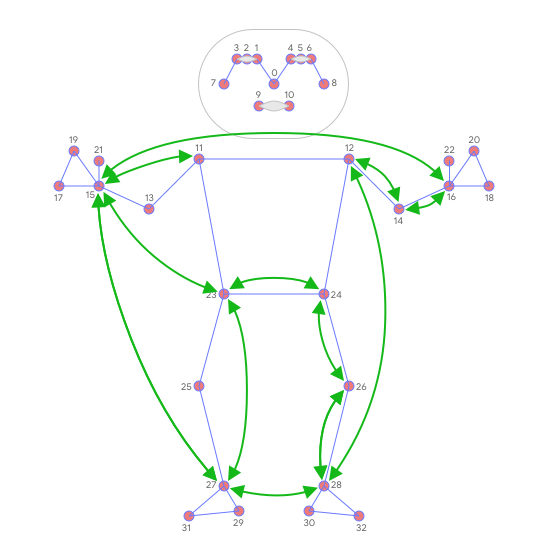
- to access the coordinates
(x, y) = (results.pose_landmarks.landmark[i].x, results.pose_landmarks.landmark[i].y)
MediaPipe latest solutions
Solutions built into the python libraries are now considered legacy.
Converting an OpenCV image to a mediapipe image:
rgb_frame = mp.Image(image_format=mp.ImageFormat.SRGB, data=cv_mat)
Hands Detection
#@markdown We implemented some functions to visualize the hand landmark detection results. <br/> Run the following cell to activate the functions.

from mediapipe import soluti_jons
from mediapipe.framework.formats import landmark_pb2
import numpy as np

MARGIN = 10  # pixels
FONT_SIZE = 1
FONT_THICKNESS = 1
HANDEDNESS_TEXT_COLOR = (88, 205, 54) # vibrant green

def draw_landmarks_on_image(rgb_image, detection_result):
  hand_landmarks_list = detection_result.hand_landmarks
  handedness_list = detection_result.handedness
  annotated_image = np.copy(rgb_image)

  # Loop through the detected hands to visualize.
  for idx in range(len(hand_landmarks_list)):
    hand_landmarks = hand_landmarks_list[idx]
    handedness = handedness_list[idx]

    # Draw the hand landmarks.
    hand_landmarks_proto = landmark_pb2.NormalizedLandmarkList()
    hand_landmarks_proto.landmark.extend([
      landmark_pb2.NormalizedLandmark(x=landmark.x, y=landmark.y, z=landmark.z) for landmark in hand_landmarks
    ])
    solutions.drawing_utils.draw_landmarks(
      annotated_image,
      hand_landmarks_proto,
      solutions.hands.HAND_CONNECTIONS,
      solutions.drawing_styles.get_default_hand_landmarks_style(),
      solutions.drawing_styles.get_default_hand_connections_style())

    # Get the top left corner of the detected hand's bounding box.
    height, width, _ = annotated_image.shape
    x_coordinates = [landmark.x for landmark in hand_landmarks]
    y_coordinates = [landmark.y for landmark in hand_landmarks]
    text_x = int(min(x_coordinates) * width)
    text_y = int(min(y_coordinates) * height) - MARGIN

    # Draw handedness (left or right hand) on the image.
    cv2.putText(annotated_image, f"{handedness[0].category_name}",
                (text_x, text_y), cv2.FONT_HERSHEY_DUPLEX,
                FONT_SIZE, HANDEDNESS_TEXT_COLOR, FONT_THICKNESS, cv2.LINE_AA)

  return annotated_image

import cv2
img = cv2.imread("../images/hand.png")
# STEP 1: Import the necessary modules.
import mediapipe as mp
from mediapipe.tasks import python
from mediapipe.tasks.python import vision

# STEP 2: Create an HandLandmarker object.
base_options = python.BaseOptions(model_asset_path='./models/hand_landmarker.task')
options = vision.HandLandmarkerOptions(base_options=base_options,
                                       num_hands=2)
detector = vision.HandLandmarker.create_from_options(options)

# STEP 3: Load the input image.
image = mp.Image.create_from_file("../images/hand.png")

# STEP 4: Detect hand landmarks from the input image.
detection_result = detector.detect(image)

# STEP 5: Process the classification result. In this case, visualize it.
annotated_image = draw_landmarks_on_image(cv2.cvtColor(image.numpy_view(), cv2.COLOR_RGB2BGR), detection_result)
cv2.imshow("frame", annotated_image )
cv2.waitKey(0)
cv2.destroyAllWindows()
Face Detection
# for visualization
from typing import Tuple, Union
import math
import cv2
import numpy as np

MARGIN = 10  # pixels
ROW_SIZE = 10  # pixels
FONT_SIZE = 1
FONT_THICKNESS = 1
TEXT_COLOR = (255, 0, 0)  # red


def _normalized_to_pixel_coordinates(
    normalized_x: float, normalized_y: float, image_width: int,
    image_height: int) -> Union[None, Tuple[int, int]]:
  """Converts normalized value pair to pixel coordinates."""

  # Checks if the float value is between 0 and 1.
  def is_valid_normalized_value(value: float) -> bool:
    return (value > 0 or math.isclose(0, value)) and (value < 1 or
                                                      math.isclose(1, value))

  if not (is_valid_normalized_value(normalized_x) and
          is_valid_normalized_value(normalized_y)):
    # TODO: Draw coordinates even if it's outside of the image bounds.
    return None
  x_px = min(math.floor(normalized_x * image_width), image_width - 1)
  y_px = min(math.floor(normalized_y * image_height), image_height - 1)
  return x_px, y_px


def visualize(
    image,
    detection_result
) -> np.ndarray:
  """Draws bounding boxes and keypoints on the input image and return it.
  Args:
    image: The input RGB image.
    detection_result: The list of all "Detection" entities to be visualize.
  Returns:
    Image with bounding boxes.
  """
  annotated_image = image.copy()
  height, width, _ = image.shape

  for detection in detection_result.detections:
    # Draw bounding_box
    bbox = detection.bounding_box
    start_point = bbox.origin_x, bbox.origin_y
    end_point = bbox.origin_x + bbox.width, bbox.origin_y + bbox.height
    cv2.rectangle(annotated_image, start_point, end_point, TEXT_COLOR, 3)

    # Draw keypoints
    for keypoint in detection.keypoints:
      keypoint_px = _normalized_to_pixel_coordinates(keypoint.x, keypoint.y,
                                                     width, height)
      color, thickness, radius = (0, 255, 0), 2, 2
      cv2.circle(annotated_image, keypoint_px, thickness, color, radius)

    # Draw label and score
    category = detection.categories[0]
    category_name = category.category_name
    category_name = '' if category_name is None else category_name
    probability = round(category.score, 2)
    result_text = category_name + ' (' + str(probability) + ')'
    text_location = (MARGIN + bbox.origin_x,
                     MARGIN + ROW_SIZE + bbox.origin_y)
    cv2.putText(annotated_image, result_text, text_location, cv2.FONT_HERSHEY_PLAIN,
                FONT_SIZE, TEXT_COLOR, FONT_THICKNESS)

  return annotated_image

IMAGE_FILE = '../images/faces.jpg'

import cv2

img = cv2.imread(IMAGE_FILE)
cv2.imshow("loaded image", img)
cv2.waitKey(0)

# STEP 1: Import the necessary modules.
import numpy as np
import mediapipe as mp
from mediapipe.tasks import python
from mediapipe.tasks.python import vision

# STEP 2: Create an FaceDetector object.
base_options = python.BaseOptions(model_asset_path='./models/detector.tflite')
options = vision.FaceDetectorOptions(base_options=base_options)
detector = vision.FaceDetector.create_from_options(options)

# STEP 3: Load the input image.
image = mp.Image.create_from_file(IMAGE_FILE)

# STEP 4: Detect faces in the input image.
detection_result = detector.detect(image)

# STEP 5: Process the detection result. In this case, visualize it.
image_copy = np.copy(image.numpy_view())
annotated_image = visualize(image_copy, detection_result)
rgb_annotated_image = cv2.cvtColor(annotated_image, cv2.COLOR_BGR2RGB)
cv2.imshow("faces annotated", rgb_annotated_image)
cv2.waitKey(0)
cv2.destroyAllWindows()
Object Detection
#@markdown We implemented some functions to visualize the object detection results. <br/> Run the following cell to activate the functions.
import cv2
import numpy as np

MARGIN = 10  # pixels
ROW_SIZE = 10  # pixels
FONT_SIZE = 1
FONT_THICKNESS = 1
TEXT_COLOR = (255, 0, 0)  # red


def visualize(
    image,
    detection_result
) -> np.ndarray:
  """Draws bounding boxes on the input image and return it.
  Args:
    image: The input RGB image.
    detection_result: The list of all "Detection" entities to be visualize.
  Returns:
    Image with bounding boxes.
  """
  for detection in detection_result.detections:
    # Draw bounding_box
    bbox = detection.bounding_box
    start_point = bbox.origin_x, bbox.origin_y
    end_point = bbox.origin_x + bbox.width, bbox.origin_y + bbox.height
    cv2.rectangle(image, start_point, end_point, TEXT_COLOR, 3)

    # Draw label and score
    category = detection.categories[0]
    category_name = category.category_name
    probability = round(category.score, 2)
    result_text = category_name + ' (' + str(probability) + ')'
    text_location = (MARGIN + bbox.origin_x,
                     MARGIN + ROW_SIZE + bbox.origin_y)
    cv2.putText(image, result_text, text_location, cv2.FONT_HERSHEY_PLAIN,
                FONT_SIZE, TEXT_COLOR, FONT_THICKNESS)

  return image

# loading the image

IMAGE_FILE = '../images/cats_and_dogs.jpg'

import cv2

img = cv2.imread(IMAGE_FILE)
cv2.imshow("loaded image", img)
cv2.waitKey(0)

# STEP 1: Import the necessary modules.
import numpy as np
import mediapipe as mp
from mediapipe.tasks import python
from mediapipe.tasks.python import vision

# STEP 2: Create an ObjectDetector object.
base_options = python.BaseOptions(model_asset_path='./models/efficientdet.tflite')
options = vision.ObjectDetectorOptions(base_options=base_options,
                                       score_threshold=0.5)
detector = vision.ObjectDetector.create_from_options(options)

# STEP 3: Load the input image.
image = mp.Image.create_from_file(IMAGE_FILE)

# STEP 4: Detect objects in the input image.
detection_result = detector.detect(image)
print(detection_result)
# STEP 5: Process the detection result. In this case, visualize it.
image_copy = np.copy(image.numpy_view())
annotated_image = visualize(image_copy, detection_result)
rgb_annotated_image = cv2.cvtColor(annotated_image, cv2.COLOR_BGR2RGB)
cv2.imshow("annotated image", rgb_annotated_image)
cv2.waitKey(0)
cv2.destroyAllWindows()
Projects
Face Tracking
Tracks a face and adjust the camera such that its pointing straight towards the face.
from typing import Tuple, Union
import math
import cv2
import numpy as np
import Raspbot_Lib

MARGIN = 10  # pixels
ROW_SIZE = 10  # pixels
FONT_SIZE = 1
FONT_THICKNESS = 1
TEXT_COLOR = (255, 0, 0)  # red

def _normalized_to_pixel_coordinates(
    normalized_x: float, normalized_y: float, image_width: int,
    image_height: int) -> Union[None, Tuple[int, int]]:
  """Converts normalized value pair to pixel coordinates."""

  # Checks if the float value is between 0 and 1.
  def is_valid_normalized_value(value: float) -> bool:
    return (value > 0 or math.isclose(0, value)) and (value < 1 or
                                                      math.isclose(1, value))

  if not (is_valid_normalized_value(normalized_x) and
          is_valid_normalized_value(normalized_y)):
    # TODO: Draw coordinates even if it's outside of the image bounds.
    return None
  x_px = min(math.floor(normalized_x * image_width), image_width - 1)
  y_px = min(math.floor(normalized_y * image_height), image_height - 1)
  return x_px, y_px


def visualize(
    image,
    detection_result
) -> np.ndarray:
  """Draws bounding boxes and keypoints on the input image and return it.
  Args:
    image: The input RGB image.
    detection_result: The list of all "Detection" entities to be visualize.
  Returns:
    Image with bounding boxes.
  """
  annotated_image = image.copy()
  height, width, _ = image.shape

  for detection in detection_result.detections:
    # Draw bounding_box
    bbox = detection.bounding_box
    start_point = bbox.origin_x, bbox.origin_y
    end_point = bbox.origin_x + bbox.width, bbox.origin_y + bbox.height
    cv2.rectangle(annotated_image, start_point, end_point, TEXT_COLOR, 3)

    # Draw keypoints
    for keypoint in detection.keypoints:
      keypoint_px = _normalized_to_pixel_coordinates(keypoint.x, keypoint.y,
                                                     width, height)
      color, thickness, radius = (0, 255, 0), 2, 2
      cv2.circle(annotated_image, keypoint_px, thickness, color, radius)

    # Draw label and score
    category = detection.categories[0]
    category_name = category.category_name
    category_name = '' if category_name is None else category_name
    probability = round(category.score, 2)
    result_text = category_name + ' (' + str(probability) + ')'
    text_location = (MARGIN + bbox.origin_x,
                     MARGIN + ROW_SIZE + bbox.origin_y)
    cv2.putText(annotated_image, result_text, text_location, cv2.FONT_HERSHEY_PLAIN,
                FONT_SIZE, TEXT_COLOR, FONT_THICKNESS)

  return annotated_image

import numpy as np
import mediapipe as mp
from mediapipe.tasks import python
from mediapipe.tasks.python import vision

# STEP 2: Create an ObjectDetector object.
base_options = python.BaseOptions(model_asset_path='./models/detector.tflite')
options = vision.FaceDetectorOptions(base_options=base_options)
detector = vision.FaceDetector.create_from_options(options)
bot = Raspbot_Lib.Raspbot()

def adjust_servo(bot:Raspbot_Lib.Raspbot, current_coord:tuple, to_coord:tuple, current_angle:tuple, restriction:tuple) -> tuple:
    # servo 1 is y, servo 2 is pitch
    # servo 1 range from (0, 180)
    # servo 2 range from (0, 120)
    pixel_diff = (to_coord[0] - current_coord[0], to_coord[1] - current_coord[1])
    print(pixel_diff)
    speed = 0.20
    angle_diff = ((pixel_diff[0]/restriction[0])*180*speed, (pixel_diff[1]/restriction[1])*120*speed)
    print(angle_diff)
    clamp = lambda x, lower, upper: max(min(upper, x), lower)
    control_angle = (clamp(int(current_angle[0] - angle_diff[0]), 0, 180), clamp(int(current_angle[1] - angle_diff[1]), 0, 120))
    bot.Ctrl_Servo(1, control_angle[0])
    bot.Ctrl_Servo(2, control_angle[1])
    return control_angle

# STEP 3: Load the input image
cap = cv2.VideoCapture(0)

try:
    if cap.isOpened():
        current_coord = (cap.get(cv2.CAP_PROP_FRAME_WIDTH)/2, cap.get(cv2.CAP_PROP_FRAME_HEIGHT)/2)
        print(current_coord)
        current_angle = (90, 40)
        adjust_servo(bot, (0, 0), (0, 0), current_angle, (1, 1))
        while True:
            ret, img = cap.read()
            if not ret:
                print("Can't receive frame. Exitting...")
                break

            mp_image = mp.Image(image_format=mp.ImageFormat.SRGB, data=img)
            detection_result = detector.detect(mp_image)
            if len(detection_result.detections) > 0:
                bbox = detection_result.detections[0].bounding_box
                to_coord = (bbox.origin_x + bbox.width/2, bbox.origin_y + bbox.height/2)
                current_angle = adjust_servo(bot, current_coord, to_coord, current_angle, (cap.get(cv2.CAP_PROP_FRAME_WIDTH), cap.get(cv2.CAP_PROP_FRAME_HEIGHT)))
            image_copy = np.copy(mp_image.numpy_view())
            annotated_image = visualize(image_copy, detection_result)
            cv2.imshow("annotated image", annotated_image)
            if cv2.waitKey(25) == ord('q'):
                break
finally:
    cap.release()
    cv2.destroyAllWindows()
Useful Links: